Inside Lunar Paint

Tools that stay out of your way.

Move from a quick correction to a layered composition without changing applications. The feature set below reflects the current verified Lunar Paint build; platform-specific format support is identified where it differs.

Painting and drawing

From crisp pixels to pressure-aware strokes.

Brush controls expand only when you need them, while the tool shelf keeps pencil, eraser, fill, gradient, clone, recolor, shape, curve, and type close by.

Brush system

Six starting presets cover rounded, soft, inked, marker, sketch, and pixel-detail work.

  • Round, square, chisel, texture, and imported image tips
  • Spacing, angle, width, hardness, opacity, and smoothing
  • Stylus pressure for size and opacity, plus tilt response

Creative tools

Combine direct painting with precise construction and retouching tools.

  • Pencil, eraser, connected fill, and two-color gradients
  • Clone and color-replace tools
  • Geometric and symbolic shapes, plus line and curve drawing
  • Color sampling and a precision Color Lab

Layers and compositing

Build decisions you can revisit.

Keep paint organized, protect finished areas, and separate reversible tonal changes from direct pixel edits.

Layer structure

Paint layers support visibility, opacity, blend modes, reordering, duplication, merging, transforms, and independent editing and transparency locks.

Groups

Place related paint layers inside a group, collapse the group in the Layer Stack, and retain that organization in a .lunar project.

Reversible masks

Create a mask from the active selection, enable or disable it, invert it, or remove it without permanently erasing the layer.

Live adjustment layers

Add editable brightness, contrast, hue, saturation, monochrome, or sepia adjustments above the artwork and revise their settings later.

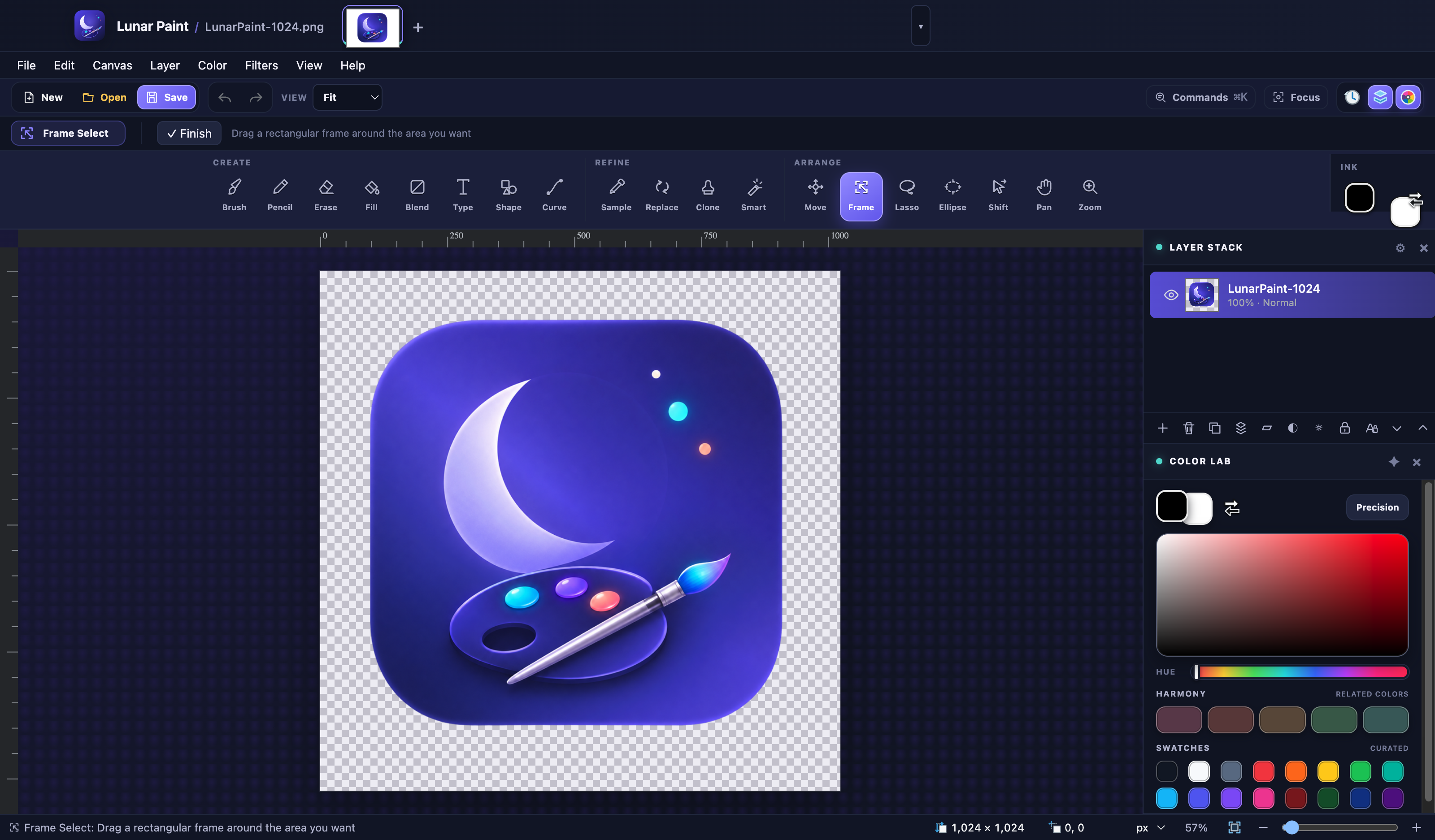
Lunar Paint workspace showing the actual creative tool shelf, image canvas, Layer Stack, and Color Lab
Focused studioMulti-image tabs, command search, and panel controls.

Photo correction

Balance, repair, and reshape the image.

Apply direct corrections when you want to change pixels, or choose live adjustment layers when the color decision should remain editable.

  • Auto Balance, brightness and contrast, curves, exposure, highlights and shadows
  • Hue and saturation, tonal levels, reduce colors, temperature and tint
  • Black and white, invert, transparency inversion, and warm sepia
  • Red-eye correction, sharpen, portrait softening, straighten, vignette, and soft glow

Typography

Type that belongs in the artwork.

Choose from bundled type families or import your own local font files for the session and future projects.

Font tools

Search bundled fonts, import TTF, OTF, WOFF, or WOFF2 files up to 10 MB, and set size, bold, italic, underline, strikethrough, alignment, and rendering.

Creative type effects

Add editable text to the canvas, then use the typography effects for rotation or wave treatments when the composition calls for movement.

Selections and cropping

Refine the boundary before the edit.

Selections constrain painting, fills, cloning, recoloring, shapes, gradients, and type so an edit can stay exactly where it belongs.

Selection tools

Create rectangular, elliptical, freeform, or connected-color selections. Move the boundary, invert it, copy it, erase it, or zoom directly to it.

Refinement

Feather, expand, contract, and smooth a selection before painting, copying, erasing, masking, or cropping.

Crop Assistant

Choose from seven common aspect ratios, switch between portrait and landscape, preview composition guides, and keep the crop as a selection or apply it.

Canvas transforms

Resize the image or canvas, rotate, flip, align content, crop to a selection, and work in pixels or print-oriented measurements.

Filters and creative effects

Finish with focus, texture, and light.

Use direct filters for a committed change, then rely on the Edit Trail to undo or redo the result while the document is open.

Creative and focus

Ink Drawing, Painted Texture, Gaussian Blur, Motion Blur, Pixel Mosaic, Soft Glow, Sharpen, and Vignette.

Distort and stylize

Twist, Polar Inversion, Emboss, Edge Detect, Outline, Drop Shadow, Add Noise, and Median.

Portrait and photo

Red-Eye Correction, Portrait Softening, Straighten, sharpening, glow, and vignette support focused photo work.

Generate and align

Create cloud or grid/checkerboard textures and align content to the canvas or active selection.

Batch export and recovery

Repeat the delivery, protect the work.

Batch profiles turn one visible canvas into consistent sets, while configurable automatic recovery keeps periodic copies of changed documents.

Batch sizing

Use built-in square, presentation and video, print, Apple icon, or Android icon profiles. PNG preserves transparency; JPEG flattens transparent pixels onto white.

Automatic recovery

Choose a recovery interval in Preferences. Recovery copies are written atomically and presented in a startup browser with explicit Recover and Discard controls.

Multi-image workflow

Keep several images open in tabs, each with independent undo history, and use open images as frames for supported multi-image icon or cursor workflows.

Workspace preferences

Choose System, Light, or Dark appearance; Compact, Standard, or Large interface sizing; increased contrast; reduced motion; keyboard menu navigation; and local workspace preferences.

File format guide

Editable source and flattened delivery.

Advanced-format availability can depend on platform codecs or bundled conversion support. Flattened formats do not preserve Lunar Paint layer structure.

Editable project.lunar preserves the canvas, resolution, layers, groups, masks, live adjustments, visibility, opacity, blend modes, locks, and color-space metadata. Current projects remain compatible with earlier project files.
Everyday imagesPNG, JPEG, WebP, GIF, BMP, and TGA cover transparent graphics, photos, modern web images, indexed-color stills, classic bitmaps, and lossless alpha-capable creative workflows.
Advanced conversionsDirect builds handle AVIF, HEIC, DDS, TIFF, and flattened PSD with platform-native or bundled conversion support where available.
Icons and documentsICO creates multi-resolution Windows icons. PDF places the flattened image on a page sized to the artwork at its document resolution. SVG wraps the flattened artwork as an embedded PNG.
PSD noticePSD import and export are flattened. Lunar Paint does not preserve PSD layer structure; use .lunar for editable groups, masks, adjustments, and layers.
Color workflowSupported imports are normalized into an sRGB working canvas. Wide-gamut and CMYK documents are converted for the sRGB workflow, so the original should be retained when exact press-profile or HDR values are required.

Need help with a workflow?

Start with the self-service guide or send the details through the protected support form.

Contact Support